LS Pay Service internal architecture
In this article:
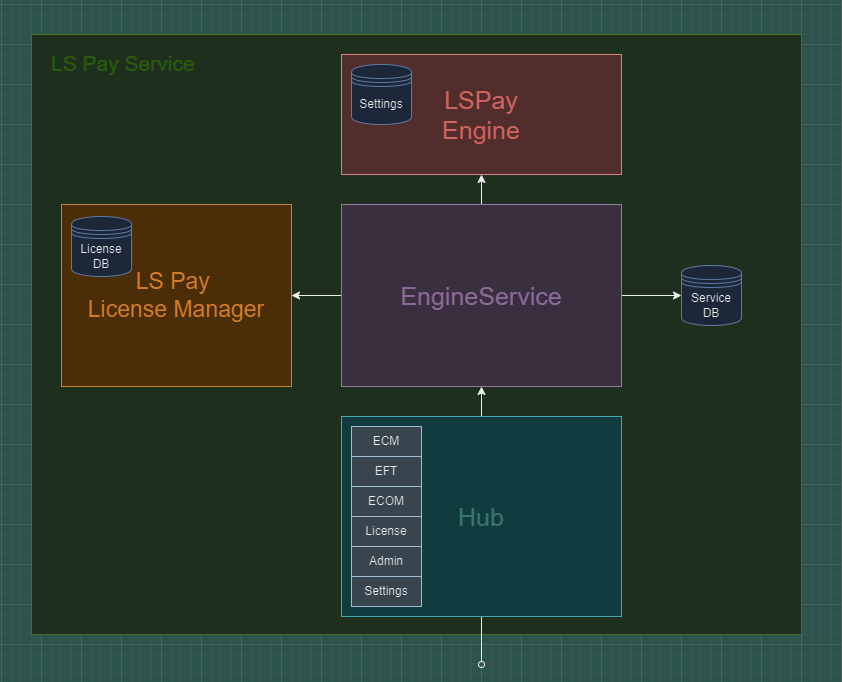
LS Pay Service
The LS Pay Service is a Windows background service that offers a SignalR API to communicate with the LS Pay Engine in order to connect to payment terminals.
Internally it is split into a few main parts, namely the Hub, the EngineService and the LS Pay License Manager. It also manages it's own database which keeps track of terminal connections created by the user.
The Hub
The Hub is the main entry point to the LS Pay Service for outside connections. All public functions in the Hub are accessible via SignalR.
- The Hub is divided into several partial classes, each focusing on different tasks like EFT, ECM, ECOM, etc.
- It is intentionally kept simple, relying on the EngineService to handle additional operations.
EngineService
The EngineService is a middle layer between the Hub and other LS Pay services.
- It manages communication with the LicenseManager and the LS Pay Engine, as well as fetching data from the LS Pay Service database.
- The database keeps track of clients that interact with the Hub to ensure all events get delivered when triggered by the LS Pay Service or LS Pay License Manager.
LS Pay License Manager
The LS Pay License Manager handles communication with the LS Retail License Manager to manage and validate licenses.
- It runs on a separate thread to avoid slowing down communications with the LS Pay Engine which is the most vital component of the LS Pay Service.
- It manages it's own encrypted data file that keeps track of the user's licensing information, hidden from the user to avoid misuse.
LS Pay Engine
This is where the main functionality of the LS Pay product resides.
- It is a standalone project but gets included in the LS Pay Service as a project reference.
- The EngineService manages all communication with the LS Pay Engine within the LS Pay Service.
LS Pay Service database
The LS Pay Service manages a minimal but crucial SQLite database that holds user settings like the minimum log level and details about each terminal connection.
- It saves the ID of each connection along with it's PSP type and activation status.
- The settings for each connection are not stored here but instead in the LS Pay Engine's database.
Using and testing the service
- Before testing the LS Pay Service the user should set up the LS Pay Service Admin UI.
- This can either be done with the LS Pay Service installer or by building the UI in Visual Studio Code.
- Details on how to do this can be found in the LS Pay Admin UI documentation.
- The user adds terminal connection to their LS Pay Service instance in the Admin UI and configures their settings.
- After completing the setup, the terminal connection can be tested in the internal LS Pay Maui test app, which is available as part of the LS Pay repository.